
Reworking the Planet view: from dashboard to colony
The Planet view looked like a form to fill in. The v0.60.0 → v0.60.3 rework turns it into a colony you actually want to look at, without touching a single game rule.
Why rework the Planet view
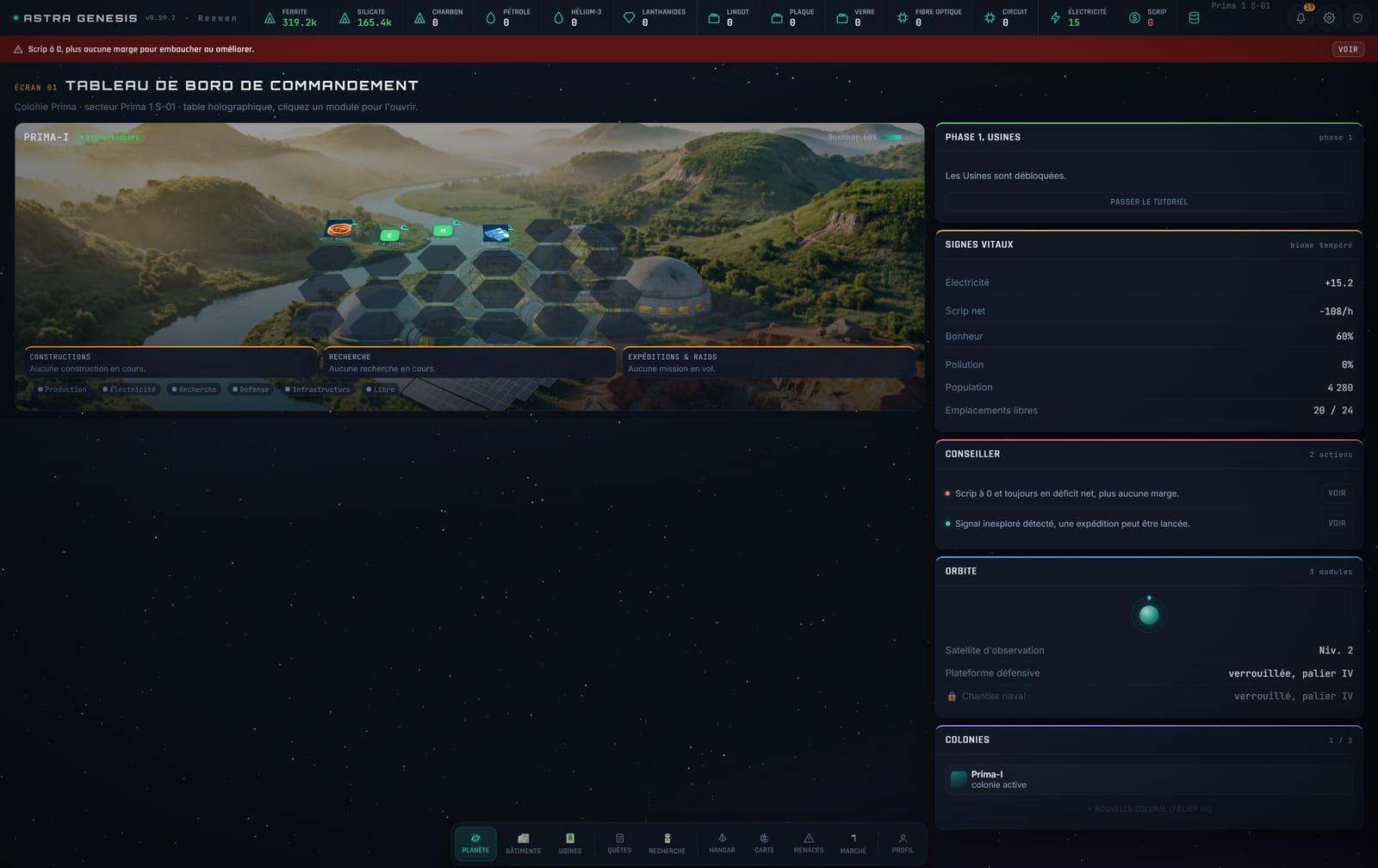
Screen 01 is the first screen every new player sees, and the one veterans keep open the longest. Up through v0.59.2, it was a dashboard in the strictest sense: orange-boxed cards, a permanent red alert banner up top, buildings scattered at roughly random positions on the planet render, with no visual link to the hexagonal grid sitting underneath. It worked, but it read like a management form, not a colony.
The v0.60.0 to v0.60.3 rework changes no rule at all: production, costs, available slots are exactly the same. What changes is what the screen actually shows you.
Before / after
Before (v0.59.2): boxed dashboard, buildings scattered across the holographic table, a permanent red shortage banner, panels that stayed open whether you were reading them or not.
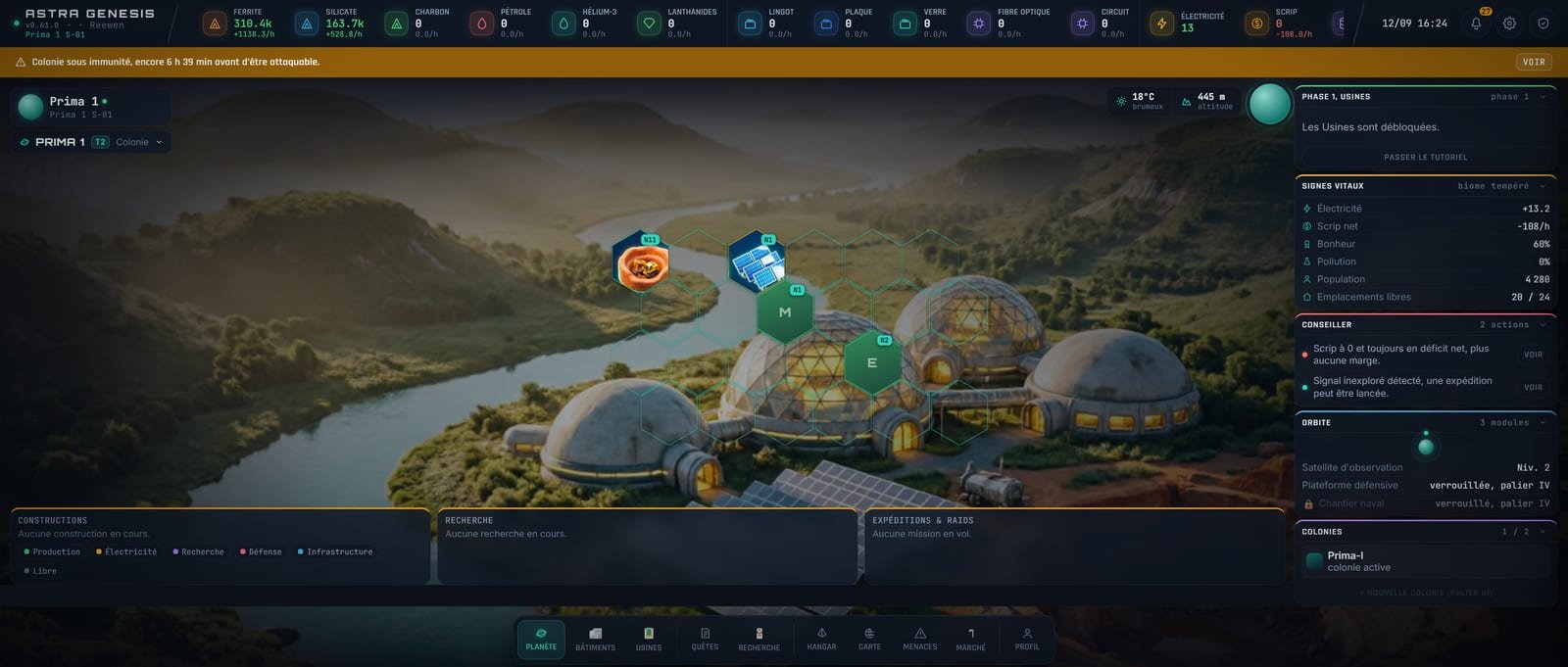
After (v0.60.3): a 24-slot honeycomb where every building actually fills its own hexagon, a radial spotlight centering your eye on the colony, separate Event and Advisor panels, a HUD with a rate for every resource.
The design choices, explained simply
The render's radial spotlight. A radial gradient centered on the colony pulls the eye toward the middle of the screen instead of letting it scatter across the four corners of an evenly lit rectangle. It's the same planet render as before; only the lighting changed, and the screen still reads far better immediately.
The 24-slot honeycomb. Before, a built structure showed up at a roughly arbitrary spot on the render. Now, the hex grid that already existed faintly underneath becomes the actual map of slots: 24 cells, occupied or empty, each at a fixed position. One glance tells you how much room is left.
Buildings that fill their own hexagon. Every built structure now takes up the full space of its cell, with a readable icon and name right there, instead of a small floating marker hovering above the terrain. The colony looks built, not pinned.
Collapsible panels, with the choice remembered. Constructions, Research, Expeditions: these three panels can now be closed with one click, and the game remembers each player's choice across sessions. If you never launch an expedition early on, that panel stays closed until you open it yourself.
A HUD with per-resource rate and a real date. The top bar used to show totals only; it now also shows the rate (+412/h, +17, and so on) so you can tell at a glance where the colony's economy is heading, plus an in-game date instead of a bare sector number.
A banner reserved for events, the advisor split out. Before, shortage alerts and advisor tips landed in the same red zone. Now, the top banner is reserved for actual events (a solar storm, a detected signal), and the advisor has its own panel, no more mixing up "this is happening right now" with "here's what I suggest."
What this changes for players
Nothing to relearn: same buildings, same costs, same slots. What changes is how long it takes to read the state of your colony when you open the screen and, simply, how much you enjoy looking at it.
What's next
v0.61.0, shipped right after, applies the same logic to the Buildings catalog: the same colony render in the background, the same radial spotlight, the same collapsible panels, this time applied to the screen where you choose what to build.
If you're testing v0.61.0, we want to hear from you: join the Discord to talk directly with the team, or sign up for the newsletter to catch every update. There's no Steam page yet; the wishlist link will follow once it exists.